

Composer is your primary workspace for interacting with Pincites. You can ask questions about contracts, request drafting or analysis, get summaries, and run playbook reviews. Understanding its features will help you work more efficiently.Documentation Index
Fetch the complete documentation index at: https://docs.pincites.com/llms.txt
Use this file to discover all available pages before exploring further.
Core functionality
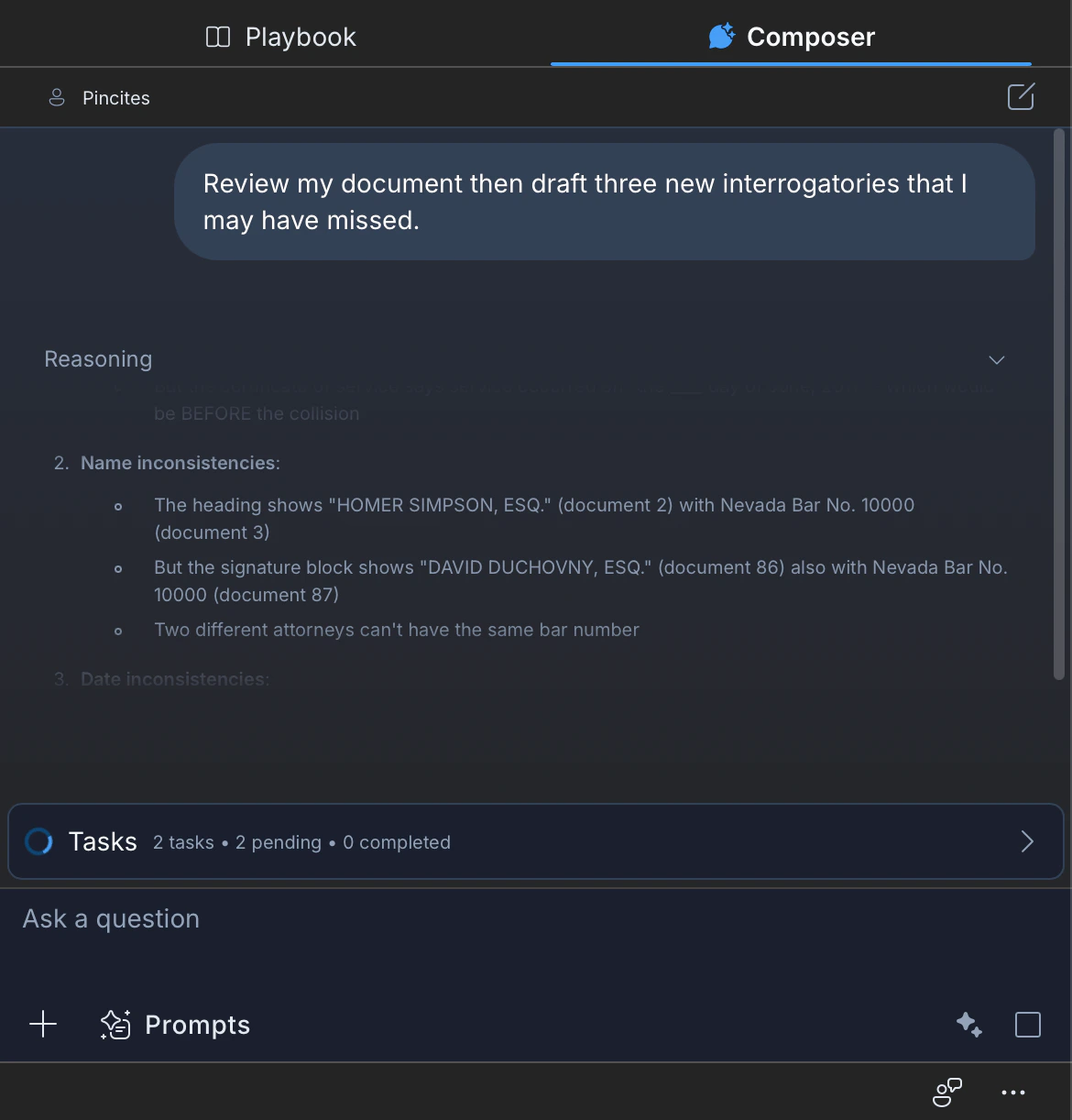
The Composer interface works like most chat applications:- Input field: Type your requests, questions, or instructions into the text box at the bottom
- Submit: Click the submit button or press Enter to send your message
- Conversation history: Your interactions are displayed in a chronological thread, making it easy to follow the conversation and refer back to previous exchanges
Key features
Agentic processing
When you submit a complex request, Composer breaks it down into sequential steps. You’ll see indicators showing what the AI is working on:- Reading: Analyzing your document or uploaded files
- Thinking: Planning the approach and reasoning through the problem
- Researching: Searching external sources for relevant information
- Writing: Generating redlines, summaries, or other output
Research capability
Composer can search the web to find relevant statutes, case law, or regulatory updates. You’ll see a “Researching” indicator when this happens. If you paste a URL into the chat, Composer can also access and analyze the content of that page. See Web Research for details on how this works and how to toggle it on or off.Document handling
Composer can analyze documents you upload or have open in Word.- Supports .docx files directly
- Can analyze .docx, .pdf, .csv, and .xlsx files uploaded into the chat
- Can read tracked changes, comments, and revision history
- Can reference multiple documents in a single conversation
Context window
The context window refers to how much information Composer can consider at once, including your conversation, attached documents, and company profile. For details on limits and best practices, see Context Window.Company profile integration
Information from your Company Profile is automatically included in Composer’s context, so responses are tailored to your organization without repeating details in every prompt.Playbook integration
Composer can pull in your playbook rules during review. Reference your playbook directly:- “Review this contract against our vendor playbook”
- “What does our playbook say about limitation of liability?”
Saved prompts
Access your pre-defined prompts directly within Composer. Click the Prompts button to browse your library and insert prompts with one click.Targeted text revision
Highlight specific text in your Word document before prompting. Composer will focus its changes on the highlighted passage rather than the entire document.Tips for effective use
- Be specific: The clearer your prompt, the better the response
- Provide context: Include your role (vendor/customer), jurisdiction, and any relevant constraints
- Break down complex tasks: For complicated requests, separate thinking steps from action steps
- Use verbs intentionally: Analysis verbs (review, identify, compare) trigger thinking; action verbs (draft, revise, redline) trigger output
- Iterate: Review responses critically and refine your prompt if needed