Documentation Index
Fetch the complete documentation index at: https://docs.pincites.com/llms.txt
Use this file to discover all available pages before exploring further.
Admins can view organization-wide analytics. Other users see their own activity only.
Accessing analytics
Go to the Analytics tab in your dashboard, or visit the analytics page directly from your organization settings.
Filters
Filter the dashboard by:
- Time period (last 7 days, last 30 days, last 3 months, last 6 months, last 12 months, year to date, or custom range)
- Playbook
- User
- Paper type (first party, third party)
You can select up to 20 users and up to 20 playbooks at once, and see combined results in a single view.
Overview tab
The Overview tab shows high-level metrics:
| Metric | Description |
|---|
| Contracts reviewed | Total contracts processed |
| Questions answered | AI questions asked during review |
| Time saved | Estimated hours saved based on review activity |
| Redlines accepted | AI-suggested redlines accepted into documents |
Risk analysis tab
The Risk analysis tab shows risk patterns across your contract portfolio:
| Metric | Description |
|---|
| Third party papers | Contracts where you’re reviewing counterparty paper |
| First party papers | Contracts using your templates |
| High risk issues | Total high-severity issues flagged |
| Unresolved high risk | High-severity issues not yet addressed |
Recurring contract issues
A table shows which issues appear most often across your contracts. Click on a column header to sort by that column.
| Column | Description |
|---|
| Check name | The issue or clause type |
| Severity | Low, Medium, or High |
| Contracts affected | How many contracts had this issue |
| Failure rate | Percentage of contracts that failed this check |
| % resolved | How many flagged issues were resolved |
Users tab
The Users tab gives admin users a direst view of user-level metrics. Admins can quickly see who which users are more active, how usage varies across the team, and where additional training might be helpful.
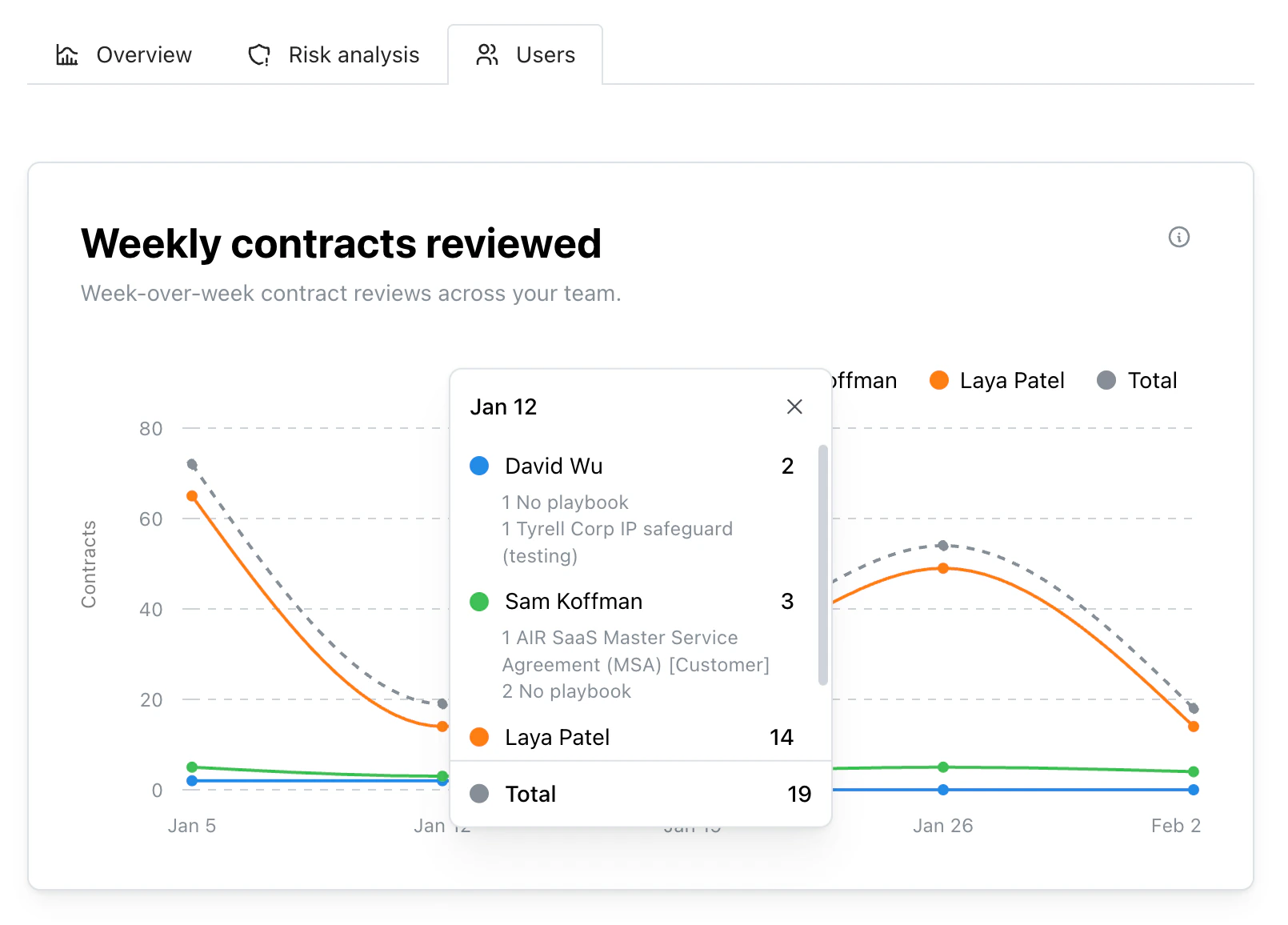
The Weekly contracts reviewed chart shows how many contracts your team reviewed each week. Spot adoptions trends over time, identify busy and slow periods, and track progress towards usage goals.
Hover over any week to see a breakdown of the playbooks and users for that week’s activity.
User metrics
A table shows individual team member activity. Click on a column header to sort by that column.
| Column | Description |
|---|
| User | Team member name |
| Contracts reviewed | Number of contracts reviewed |
| Questions answered | AI questions asked |
| Time saved | Estimated hours saved |
Advanced features
Member filtering
- Filter by specific team members to focus on individual performance
- Analyze usage by role to compare reviewers, admins, and other users
- Track productivity trends per user over time
Real-time updates
- Metrics update automatically throughout the day
- Data is current within a few hours of activity
Best practices
Regular monitoring
- Weekly: Check usage patterns and spot anomalies
- Monthly: Identify optimization opportunities and playbook gaps
- Quarterly: Plan training, measure ROI, and report to leadership
Driving adoption
- Use the user metrics table to find team members who may need training
- Identify power users who can share best practices
- Filter by playbook to compare adoption across contract types
- Track time saved to demonstrate value to stakeholders